

1. What you receive
Your purchase includes three license files. To complete registration, place all three files in the registration folder, then quit and reopen your DAW if it was already running. Registration works offline and requires no account sign-in or serial number.
| License files | Contents |
|---|---|
license.lic | License |
license.email | Your checkout email address |
license.update | Update download key (used by Download update in the information window) |
A purchase email usually arrives at your checkout email address within a few minutes of payment. It has a ZIP file attached that contains your three license files, plus a download link for the installer (.pkg) and a link to this guide. Each license has its own download link. Keep the purchase email.
If the purchase email does not arrive, check your spam folder. If it is still missing, contact [email protected] with your checkout email address.
2. Registering your license
- Download the installer from the download link in your purchase email and install it. During installation you choose the formats to install (Audio Unit, VST3, AAX); all three are selected at first.
- Double-click the ZIP file attached to your purchase email to extract it. You get your three license files (
license.lic,license.email,license.update). - In your DAW, open PurlShift and click the logo at the top left of the plug-in. When the information window opens, click Open folder…. The registration folder opens in a Finder window. If the registration folder does not exist yet, it is created at this point.
- Drag the three license files from step 2 into that Finder window. Do not add the ZIP file, and do not rename the files.
- Quit your DAW completely (⌘Q), then reopen it. Closing the plug-in window or a DAW window does not quit the DAW. The plug-in reads the license files only once, when it is first loaded after your DAW starts.
3. Checking registration
After reopening your DAW, click the logo to open the information window. If your checkout email address appears under Registered to, the plug-in has read license.email. This does not check license.lic. license.lic and license.email must be in the registration folder for PurlShift to work correctly, and license.update must also be there to download updates with Download update in the information window. Close the information window with X, Esc or a click outside it.
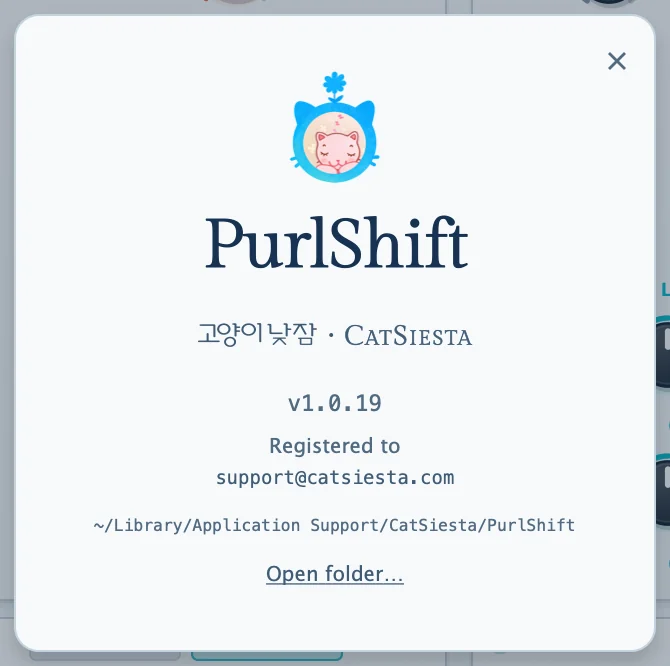
If the address does not appear, check the following.
- Are all three license files in the registration folder? Check for suffixes such as
.txtor(1)by selecting a file in Finder and pressing ⌘I (Get Info) to see its full name. - Did you quit your DAW completely (⌘Q) and reopen it after adding the files?
- If the address still does not appear, contact [email protected] with your checkout email address.
4. Opening the registration folder manually
If Open folder… does not open the registration folder, open it in Finder. The registration folder is at the path below, which is also shown in the information window. When you save a user preset, a User folder is created inside it.
~/Library/Application Support/CatSiesta/PurlShift/- In Finder, choose Go › Go to Folder (⇧⌘G).
- Paste the path above and press Return.
~/Libraryis normally hidden in Finder, so this is the quickest way to open it. - If Finder says the folder does not exist, go to
~/Library/Application Support/and create aCatSiestafolder, then aPurlShiftfolder inside it. Match the spelling and capitalization exactly. - Put the three license files in that folder, then quit your DAW completely (⌘Q) and reopen it (as in steps 4 and 5 of section 2).
5. Things to avoid
- Do not edit the contents of
license.email. The address in it must match the email address your license was issued to. - Do not rename the license files or move them out of the registration folder.
- Do not share or publish your license files. Use them only as permitted by the Terms of Use.
6. Getting updates
When a new version is available, the flower on the logo at the top left of the plug-in turns pink, and a pink paw print appears at the lower right of the logo. Click the logo to open the information window, which shows the line A new version is out.


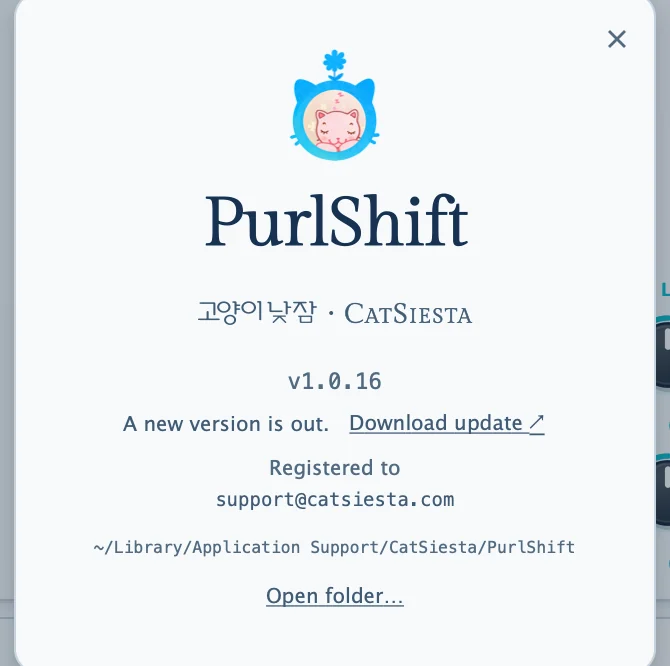
To install an update:
- Click Download update in the information window. Your browser downloads the installer. If this page opens instead, check that all three license files are in the registration folder, especially
license.licandlicense.update. Put the files from your ZIP file into the registration folder again, or use the download link in your update email or purchase email. If your browser showsNot found, the license files in the registration folder may not match or may have been modified. Replace all three with the files from the same ZIP file. - Install the new version with the installer you downloaded.
- Quit your DAW completely (⌘Q), then reopen it.
Leave your license files in the registration folder; you do not need to add them again. If you cannot find the email, use the Resend your license page to get your license files and the download link again.
To tell you about new versions, the plug-in asks our server once whether a new version is available, when it is first opened after you start your DAW. What it sends is described in Section 10 of our Privacy Policy.
7. Other situations
- Keep a copy of the ZIP file on another storage device or in the cloud. Without the license files, you cannot register PurlShift.
- If you lose your license files: enter your checkout email address on the Resend your license page, and we’ll send your original license files and the download link to that address again.
- If your checkout email address changes after purchase: we do not reissue the license to a new address. The license files you already received continue to work.
- If you entered an incorrect email address at checkout: after verifying your proof of purchase, we send a replacement license to the correct address, once per order. See Terms of Use, section 2.
- Use on multiple computers: you may use the plug-in on up to three computers you own or control (Terms of Use, section 4). Register each computer using the steps in section 2.